

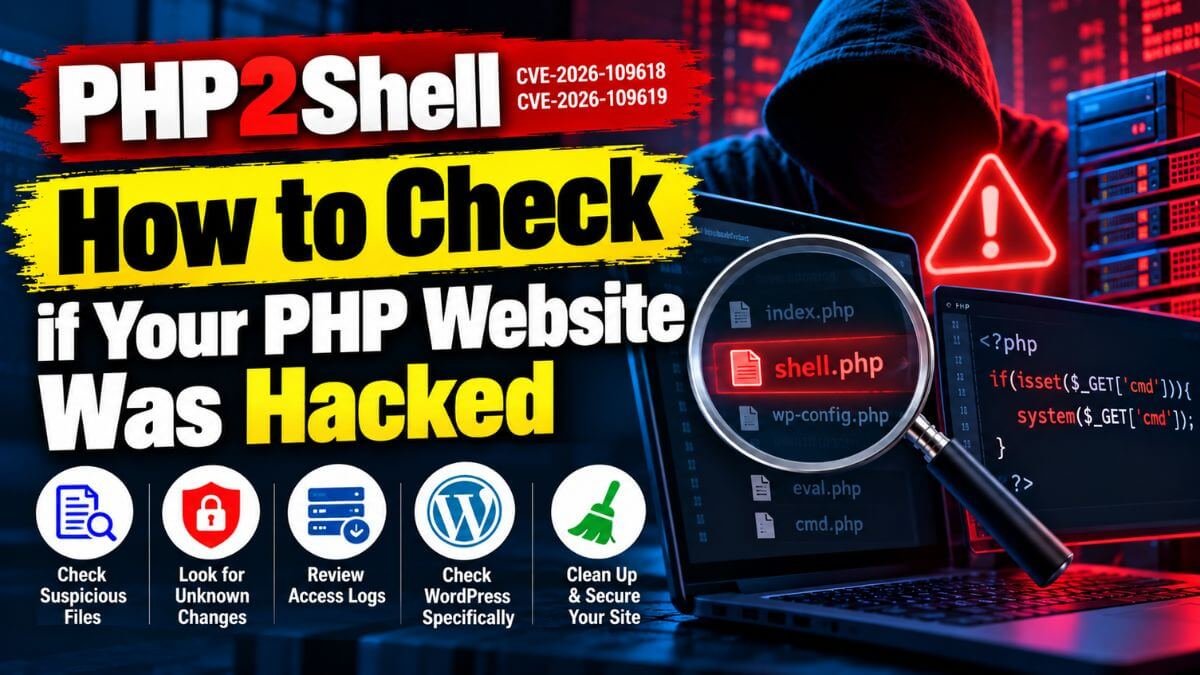
After the critical PHP2Shell vulnerabilities (CVE-2026-109618 and CVE-2026-109619) became public, security researchers reported attacks in the wild. Even if you patch PHP today, an attacker may have got in before you did. This guide shows how to check whether your PHP website, including WordPress, was hacked, how to find a web shell, and how to clean up properly.
Quick answer
- Look for PHP files you did not create, especially in upload and temporary folders, and for files changed after the vulnerability became public.
- Check for new admin users, unknown cron jobs, strange processes and odd requests in your logs.
- On WordPress, verify core and plugin files against the official checksums.
- If you find signs of a hack, do not just delete one file. Restore from a clean backup, update everything, and change every password and key.
- Finding nothing does not prove a site is clean, but these checks catch most common problems.
Patch first. If you have not updated PHP yet, follow our guide to updating PHP, and then come back here.
What is a web shell?
A web shell is a small script that an attacker uploads to your server. It gives them a hidden backdoor, so they can run commands, read your files and database, and come back whenever they want, even after you fix the original hole. Web shells are usually named to look harmless, hidden in upload or cache folders, and often use obfuscated code.
Signs that your site may have been hacked
- Your site redirects visitors to other sites, or shows spam, casino or pharmacy content
- Google shows a “This site may be hacked” warning, or Search Console reports a security issue
- Your host suspends your account, or sends a malware warning
- Your server is suddenly slow, or your CPU or traffic jumps without a reason
- There are new admin users or changed passwords you did not create
- Files or folders appear that you do not recognise
- Your site sends spam email, or your mail queue is full
- Visitors or security tools report malware
A site can also be hacked with no visible sign. So check even if everything looks normal.
Before you start
- Take a backup of your current state, files and database, even though it may be infected. You may need it later as evidence.
- Download your server logs.
- If you can, put the site in maintenance mode while you investigate.
- Run the commands as a user who can read your website files. You need SSH access for most of them. On shared hosting, use the file manager and your host’s malware scanner, or ask support.
Step 1: Look for unexpected PHP files
Uploads, cache and temporary folders should not contain PHP files in most sites. Search for them:
find /var/www -type f \( -name '*.php' -o -name '*.phtml' -o -name '*.phar' \) -path '*/uploads/*'Find PHP files that changed in the last week (change the number of days to match the date the vulnerability became public, October 20, 2026):
find /var/www -type f -name '*.php' -mtime -7
find /var/www -type f -name '*.php' -newermt '2026-10-20'
Changed files after you installed updates are normal. Look at the ones that you did not expect, with strange names or in odd folders. Also check .htaccess files, because attackers use them for hidden redirects:
find /var/www -name '.htaccess' -mtime -7Step 2: Search for suspicious code
This search lists PHP files that use functions that malware often uses:
grep -RIlE 'eval\(|base64_decode\(|gzinflate\(|str_rot13\(' /var/www --include='*.php'These functions also appear in legitimate plugins and themes, so expect false positives. The things to look at are files that you do not recognise, files with long unreadable strings, and files in places such as uploads.
Step 3: Verify WordPress core and plugin files
WP-CLI can compare your files with the official copies:
wp core verify-checksums
wp plugin verify-checksums --all
Any file that is reported as modified or added to core, or modified in a plugin, needs a closer look. Premium and custom plugins may not be checked.
Step 4: Check users and permissions
wp user list --role=administratorOn WordPress, also check the Users page in the dashboard. Delete administrators that you do not recognise. For custom PHP sites, check your user table in the database for new or changed accounts.
Step 5: Check scheduled tasks and processes
crontab -l
ls -la /etc/cron.d
ps aux --sort=-%cpu | head -15
ss -tunap | head -30
Look for jobs, processes and outgoing connections that you do not recognise. Cryptocurrency miners and spam senders often show up as high CPU use.
Step 6: Read your logs
Look for requests to PHP files that should not receive visitors, especially POST requests to files in uploads, cache or theme folders. With the default Nginx log format, this lists the most frequent POST requests to PHP files:
grep 'POST' /var/log/nginx/access.log | grep '\.php' | awk '{print $1, $7}' | sort | uniq -c | sort -rn | headFor Apache, use /var/log/apache2/access.log (Debian and Ubuntu) or your host’s log location. Also look at the error log for sudden bursts of memory errors, because the PHP2Shell flaws involve out-of-memory handling, and for any strange errors around the time the vulnerability became public.
Step 7: Check what Google and the world see
- Open Google Search Console and look at Security issues and Manual actions.
- Search Google for site:yourdomain.com and look for pages that you did not create, such as spam products.
- Check your domain in Google’s Safe Browsing site status page.
- Run a scan with a security plugin such as Wordfence, or with a server scanner such as ClamAV or Linux Malware Detect. Ask your host if they provide a malware scanner.
If you find a web shell or other signs of a hack
Do not only delete the file you found. Attackers usually leave more than one way in. Work through this list:
- Isolate the site. Turn on maintenance mode, or take it offline if it is spreading malware or spam.
- Keep evidence. Save copies of the logs and of the infected files, outside the web folder.
- Find out how they got in, if you can. It could be the unpatched PHP, an outdated plugin, a weak password or a stolen login.
- Restore from a clean backup made before the hack, if you have one. Make sure that the backup itself is not infected.
- Update everything: PHP first, then your CMS, plugins, themes and libraries.
- Reinstall WordPress core, plugins and themes from fresh copies, and do not copy back files from the hacked site. You can reinstall core with:
wp core download --force --skip-content- Remove unknown files, users and scheduled tasks.
- Change every credential: hosting and control panel, SFTP and SSH, the database password (and update your config file), WordPress admin passwords, API keys, and payment or email service keys. In WordPress, also replace the security keys and salts, which logs everyone out:
wp config shuffle-salts- Scan again, and watch the logs for a few days.
- If Google flagged your site, fix it, and then request a review in Search Console.
- If you store customer data, talk to a security professional. You may have legal duties to report a data breach, depending on your country and the data involved.
How to avoid it next time
- Keep PHP, your CMS and plugins updated. See our PHP2Shell guide for a full hardening checklist.
- Stop PHP from running in upload folders.
- Use strong, unique passwords and two-factor authentication for admin accounts.
- Use a WAF as an extra layer, but not as a replacement for patching.
- Keep automatic, tested backups, with a copy away from your server.
- Use file integrity monitoring or a security plugin that warns you when files change.
FAQs
How do I know if my PHP site has a web shell?
Look for PHP files you did not create, especially in upload, cache and temporary folders, files with unreadable obfuscated code, and recent changes in your logs. On WordPress, verify the core and plugin checksums.
Can I just delete the malicious file?
No. Attackers usually leave several backdoors, and the original hole is still open. Restore from a clean backup, update everything and change all credentials.
Was my site hacked through PHP2Shell?
You cannot be sure from the files alone. The same signs appear whichever way the attacker got in. Fix the PHP version, and also check plugins, passwords and logins.
Will a malware scanner find everything?
No. Scanners find known patterns, and new or custom malware can slip through. Use a scanner together with the manual checks above.
Should I call my hosting provider?
Yes, if you are on shared hosting or a managed plan. They can scan your account, check server logs and help with a clean-up.
This guide is general information, and not a replacement for a professional incident response. If customer data may have been exposed, get professional help.