


Close Menu
InfovistarInfovistar
  • AI & ML
  • Cybersecurity
  • Money
    • Personal Finance
  • Insights
    • Tech News
    • Tech Tips
    • Startup
    • Web Development
    • AWS and Cloud
    • Technology
  • Courses
    • Machine Learning
      • Python Tutorial
      • TensorFlow Tutorial
      • OpenCV
    • DSA
      • Data Structures
    • Web Development
      • PHP Tutorial
      • CodeIgniter Tutorial
      • CodeIgniter 4 Tutorial
      • CodeIgniter 4 AJAX
      • JavaScript
    • Mobile App Development
      • Android Tutorial
  • Tools
    • Beautifier
      • HTML Beautifier
      • JavaScript Beautifier
      • CSS Beautifier
    • Online Compilers
      • Python Compiler
      • Java Compiler
      • JavaScript Editor
      • PHP Compiler
      • C++ Compiler
      • C Compiler
    • Image Optimization
      • Image Compressor
      • JPEG to PNG
      • PNG to JPEG
      • WebP to PNG
Trending News
US Outage Wave_ Microsoft, FAA, Banks, Apple-compressed

US Outages Explained: What Happened to Microsoft, FAA and Banks

November 18, 2026
Microsoft 365 Outage_ Outlook, Teams and Copilot Down. What We Know

Microsoft 365 Outage: Outlook, Teams and Copilot Down. What We Know

November 13, 2026
Diwali online shopping scams warning for shoppers in India

Diwali Online Shopping Scams 2026: 10 Ways to Stay Safe

November 7, 2026
Facebook X (Twitter) Instagram
Thursday, November 19
Trending
  • US Outages Explained: What Happened to Microsoft, FAA and Banks
  • Microsoft 365 Outage: Outlook, Teams and Copilot Down. What We Know
  • Diwali Online Shopping Scams 2026: 10 Ways to Stay Safe
  • 10 Best DDoS Protection Services for 2027
  • 12 Best Web Application Firewalls (WAF) for 2027
  • Best Ethical Hacking Tools in 2027: Free & Paid Picks
  • Software supply chain attacks 2026: Timeline and developer checklist
  • Binance Hack: $6.3 Billion Drained in the Largest Crypto Theft Ever. What We Know So Far
Facebook X (Twitter) Instagram Pinterest LinkedIn WhatsApp
InfovistarInfovistar
  • AI & ML
  • Cybersecurity
  • Money
    • Personal Finance
  • Insights
    • Tech News
    • Tech Tips
    • Startup
    • Web Development
    • AWS and Cloud
    • Technology
  • Courses
    • Machine Learning
      • Python Tutorial
      • TensorFlow Tutorial
      • OpenCV
    • DSA
      • Data Structures
    • Web Development
      • PHP Tutorial
      • CodeIgniter Tutorial
      • CodeIgniter 4 Tutorial
      • CodeIgniter 4 AJAX
      • JavaScript
    • Mobile App Development
      • Android Tutorial
  • Tools
    • Beautifier
      • HTML Beautifier
      • JavaScript Beautifier
      • CSS Beautifier
    • Online Compilers
      • Python Compiler
      • Java Compiler
      • JavaScript Editor
      • PHP Compiler
      • C++ Compiler
      • C Compiler
    • Image Optimization
      • Image Compressor
      • JPEG to PNG
      • PNG to JPEG
      • WebP to PNG
InfovistarInfovistar
Home » How to Delete Emails in Bulk in Gmail
Tech Tips

How to Delete Emails in Bulk in Gmail

InfovistarBy InfovistarMarch 15, 20255 Mins Read
Share Facebook Twitter Pinterest LinkedIn Tumblr Reddit Telegram Email
How to Delete Emails in Bulk in Gmail
Share
Facebook Twitter LinkedIn Pinterest Email

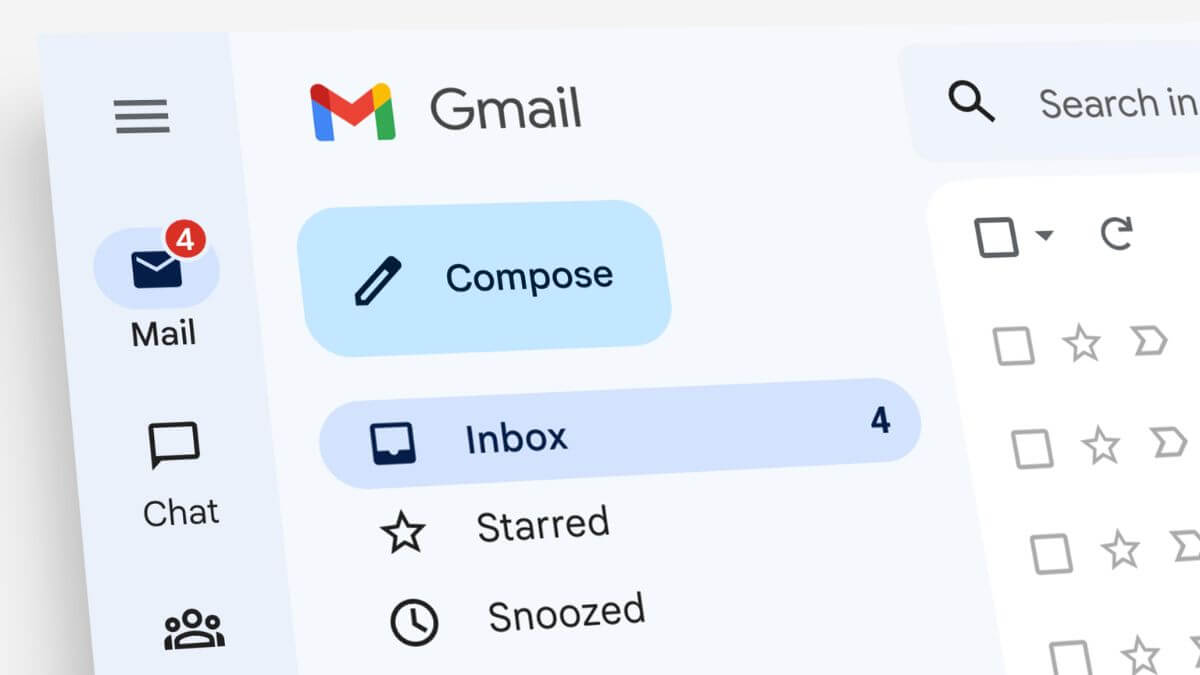
Is your Gmail inbox always full? You are not alone. Many people struggle to manage their overflowing inboxes. With constant promotional emails, newsletters, and receipts, emails pile up over time.

Gmail users often face the problem of running out of storage space. Google gives 15GB of free storage to Gmail, Google Drive, and Google Photos. Once it’s full, you may miss important emails.

Sure, you can buy more storage, but it is not a permanent fix. New emails keep coming, and your inbox fills up again. The best way to free up space is by deleting unwanted emails in bulk. But how do you do that without spending hours on it?

Here are some practical tips to delete emails in bulk on Gmail. Follow these steps to clean your inbox fast and hassle-free.

1. Delete All Marketing Emails with “Unsubscribe” Tag

Marketing emails can fill up your inbox fast. They often have an “Unsubscribe” option at the bottom. You can use this to filter them. Here’s how:

  1. Open Gmail on your browser and click on your Inbox.
  2. Type “Unsubscribe” in the search bar and hit enter.
  3. This will show all marketing emails with the unsubscribe option.
  4. Click the checkbox at the top-left to select all visible emails.
  5. A message will appear saying “Select all conversations that match this search”. Click it.
  6. Click the trash can icon to move them to the Trash folder.

Repeat this process for other tabs like Promotions or Social. Deleting marketing emails will free up a lot of space.

2. Delete Emails from a Specific Sender

Sometimes, a single sender sends a lot of emails. It could be newsletters or updates that you no longer read. Deleting these can make a big difference. Here’s how to delete emails from one sender:

  1. Log in to your Gmail account.
  2. In the search bar, type:
    • from:sender_email_address
    • Replace “sender_email_address” with the actual email.
  3. Press enter to see all emails from that sender.
  4. Click the checkbox to select all.
  5. Click the trash can icon to delete them.

You can also delete emails sent to a specific address by using “to:sender_email_address”.

3. Delete Emails from a Specific Time Period

Old emails take up a lot of space, especially if they have attachments. Deleting them can save you storage. To delete emails from a specific time period, follow these steps:

  1. Go to your Gmail inbox.
  2. Type a search query in the search bar, like:
    • after:2023-11-01 (replace with your chosen date)
  3. Press enter to see all emails after that date.
  4. Click the checkbox to select them all.
  5. Click the trash can icon to delete.

To delete even older emails, use “before:2022-01-01” or any other date. You can also combine search queries for better results.

4. Use Filters to Automate Deleting Old Emails

Filters can help you delete emails as they arrive. It is an easy way to manage your inbox without much effort. Here’s how to set up a filter:

  1. Go to your Gmail settings by clicking the gear icon.
  2. Click “See all settings”.
  3. Navigate to the “Filters and Blocked Addresses” tab.
  4. Click on “Create a new filter”.
  5. Enter criteria like sender, subject, or date.
  6. Click “Create filter”.
  7. Choose “Delete it” from the options.
  8. Click “Create filter” again.

Now, Gmail will delete matching emails automatically. This way, you do not need to do it manually.

5. Delete Large Attachments to Free Up Space

Attachments can take up a lot of storage. You may not need them after a while. Deleting these emails can free up space quickly. Follow these steps:

  1. In the search bar, type: has:attachment larger:10MB
  2. Press enter to see all large attachment emails.
  3. Click the checkbox to select all.
  4. Click the trash can icon to delete them.

You can change “10MB” to any size to find bigger or smaller attachments.

6. Empty Your Trash and Spam Folders

Deleting emails moves them to the Trash folder. They remain there for 30 days before permanent deletion. To free up space right away, empty your Trash and Spam folders.

  1. Go to your Trash folder on the left sidebar.
  2. Click “Empty Trash now” at the top.
  3. Do the same for the Spam folder.

By clearing these folders, you will free up a significant amount of storage.

Also read | Google Unveils Gemini Robotics to Power Humanoid Robots

7. How to Recover Deleted Emails

Sometimes, you may delete an important email by mistake. Fortunately, Gmail stores deleted emails in the Trash folder for 30 days. You can recover them as follows:

  1. Open your Trash folder.
  2. Find the email you want to recover.
  3. Select it and click “Move to” at the top.
  4. Choose “Inbox” or any other folder.

Remember, after 30 days, Gmail permanently deletes emails from Trash. So, act fast if you need to restore them.

8. Use Google Takeout to Backup Before Deleting

Worried about losing important data? Use Google Takeout to back up your emails before bulk deletion. It saves your data to your device for future use. Here’s how to do it:

  1. Go to Google Takeout on your browser.
  2. Select “Mail” from the list of services.
  3. Click “Next Step” and choose the file format.
  4. Click “Create export” to start the backup.

This way, you have a copy of your important emails before cleaning up.

Final Thoughts

Managing your Gmail storage can feel overwhelming, but it doesn’t have to be. Follow these simple tips to delete emails in bulk and free up valuable space. Keep your inbox organized and make room for important messages.

By regularly cleaning your inbox, you avoid clutter and keep your Gmail running smoothly. Use filters to automate the process and keep unnecessary emails out. Remember to back up your data before major deletions.

With these steps, you will have a cleaner, more efficient inbox in no time. Stay organized and make the most of your Gmail storage!


Gmail Google
Share. Facebook Twitter Pinterest LinkedIn Tumblr Email
Previous ArticleGoogle Unveils Gemini Robotics to Power Humanoid Robots
Next Article Is Cybersecurity a Future-Proof Career? Trends & Opportunities
Infovistar
  • Website
  • Facebook
  • X (Twitter)
  • Instagram
  • LinkedIn

Related Posts

Best Laptops for Coding and Programming in India 2026 Buying Guide
Tech Tips

Best Laptops for Coding and Programming in India: 2026 Buying Guide

October 19, 2026
Gemini Free vs Google AI Plus, Pro and Ultra
Tech Tips

Gemini Free vs Google AI Plus, Pro and Ultra: Which Plan Do You Need in 2026?

October 19, 2026
What Is UPI AutoPay How It Works, Limits and Safety
Tech Tips

What Is UPI AutoPay? How It Works, Limits and Safety

October 19, 2026
Add A Comment

Comments are closed.

Blog Categories
  • AI and ML (106)
  • Android (4)
  • AWS and Cloud (9)
  • Cybersecurity (84)
  • Money (12)
  • Personal Finance (6)
  • Startup (37)
  • Tech News (82)
  • Tech Tips (28)
  • Technology (73)
  • Web Development (25)
Top Posts
Google is rolling out Identity Check Feature to Android 15

Google is rolling out Identity Check Feature to Android 15

January 25, 20252,375 Views
How to Integrate Google Gemini to WhatsApp

How to Use Google Gemini with WhatsApp in 2026

February 16, 20241,913 Views
OpenAI Unveils Web-Based AI Agent Operator for Task Automation

OpenAI Unveils Web-Based AI Agent Operator for Task Automation

January 24, 20251,508 Views
Stay In Touch
  • Facebook
  • YouTube
  • WhatsApp
  • Twitter
  • Instagram
  • Pinterest
  • LinkedIn
Latest Articles

Subscribe to Updates

Get the latest tech news from FooBar about tech, design and biz.

About Us

Infovistar is a technology blog offering practical tutorials, programming guides, and the latest updates on AI, cybersecurity, software development, and digital technology.

Contact Information

Address: Nashik, Maharashtra, India – 422004
Email: infovistarindia@gmail.com
Phone: +91 89990 59150

Contact Us | About Us

DMCA.com Protection Status
Most Popular
US Outage Wave_ Microsoft, FAA, Banks, Apple-compressed

US Outages Explained: What Happened to Microsoft, FAA and Banks

Microsoft 365 Outage_ Outlook, Teams and Copilot Down. What We Know

Microsoft 365 Outage: Outlook, Teams and Copilot Down. What We Know

Diwali online shopping scams warning for shoppers in India

Diwali Online Shopping Scams 2026: 10 Ways to Stay Safe

Our Picks
Binance Hack: $6.3 Billion Stolen, Largest Crypto Heist Ever

This Site Uses XSLT Chrome Warning Explained: How to Fix It

iPad mini OLED Price in India

iPad mini OLED Price in India: Wi-Fi & Cellular Variants, Offers

iMac M6 Price in India

iMac M6 Price in India: All Variants, Colors, Offers and Release Date

Facebook X (Twitter) Instagram Pinterest YouTube LinkedIn
  • About Us
  • Contact Us
  • Tools
  • Terms & Conditions
  • Privacy Policy
  • AdSense Disclaimer
© 2026 Infovistar. Designed and Developed by Infovistar.

Type above and press Enter to search. Press Esc to cancel.

Ad Blocker Enabled!
Ad Blocker Enabled!
Our website is made possible by displaying online advertisements to our visitors. Please support us by disabling your Ad Blocker.