

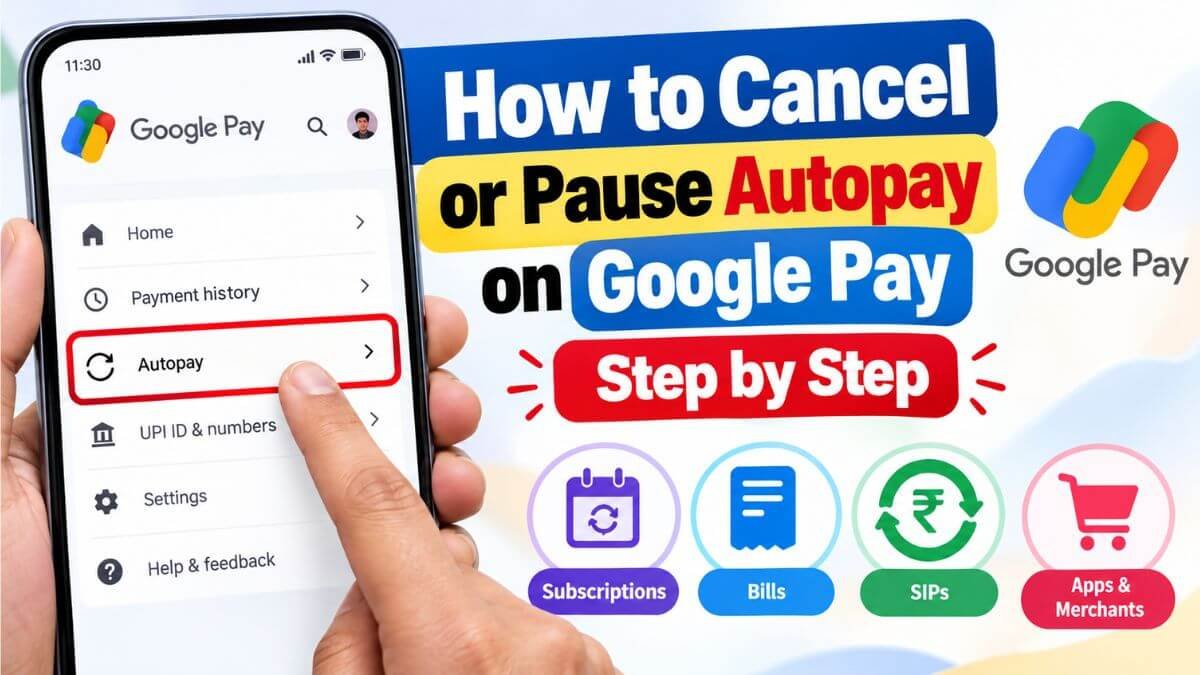
To cancel AutoPay on Google Pay, open the app, tap your profile picture, choose Autopay, select the mandate, tap the cancel or remove option and confirm. Mandates set up for loans cannot be cancelled from Google Pay, so you must contact the lender. This guide covers every way to disable, remove or cancel a GPay AutoPay mandate and what to do if money is still debited.
Quick answer
- Where: Google Pay > profile picture > Autopay.
- What to tap: the mandate you want to stop, then Cancel or Remove Autopay.
- Confirm: you may be asked for your UPI PIN.
- Loan mandates: Google Pay does not let you cancel these. Ask your lender or the merchant.
- Check afterwards: open the Autopay list again and confirm the mandate no longer shows as active.
Menu names change between app versions, so you may see “Manage AutoPay”, “Remove Autopay” or “Cancel AutoPay”.
What is AutoPay on Google Pay?
AutoPay is the UPI recurring payment feature. When you pick UPI AutoPay on a merchant app or website, you get a request in Google Pay, approve it with your UPI PIN, and the merchant can then debit your account on the schedule you agreed. It is used for subscriptions, EMIs, insurance premiums, mutual fund SIPs and similar payments. For the basics, read our guide on what is UPI AutoPay.
How to cancel AutoPay in Google Pay, step by step
- Open the Google Pay app and sign in.
- Tap your profile picture at the top right.
- Tap Autopay. You will see your active and pending mandates.
- Tap the mandate you want to stop.
- Scroll to the bottom and tap Cancel AutoPay or Remove Autopay.
- Enter your UPI PIN if the app asks for it.
- Wait for the confirmation, then reopen the Autopay list to check that the mandate is gone.
Take a screenshot of the confirmation. It helps if the merchant still tries to debit you.
How to disable AutoPay on GPay for one payment or one app
- One subscription: cancel only that mandate from the list above.
- Several mandates: repeat the steps for each one. Cancelling one does not affect others.
- A request you have not approved yet: you can decline it. Google says you do not need your UPI PIN to decline a mandate request.
- Pause instead of cancel: some UPI apps offer a pause option on the mandate screen. If you see it, use it when you want to keep the service. If not, cancel and set it up again later.
Why you cannot cancel an AutoPay mandate
| Problem | What to do |
|---|---|
| The mandate is for a loan or EMI | Google says loan mandates cannot be cancelled through Google Pay. Contact your lender or the merchant |
| The mandate is not in the list | Requests can take up to 24 hours to show in Google Pay. Check again later and update the app |
| The cancel button is missing | Update Google Pay from the Play Store or App Store, then try again |
| The mandate shows as pending | Wait for it to finish processing, then cancel |
| You get a UPI PIN error | Reset your UPI PIN in the app and try again |
What if money is still debited after you cancel?
- Check the date. A debit already in process may still go through once.
- Contact the merchant and send your cancellation screenshot.
- Raise a dispute in the UPI app from the payment details or help section.
- Contact your bank and ask for the mandate to be revoked on their side.
- Escalate if the bank does not solve it: NPCI’s UPI helpline is 1800-120-1740, and the RBI Integrated Ombudsman is the next step for unresolved complaints.
Keep the UPI reference number, the date and the amount for every complaint.
How to spot unwanted or fraudulent AutoPay mandates
- A mandate you do not remember approving
- A merchant name you do not recognise
- Small test debits followed by bigger ones
- A request that arrives after you click a link in a message or WhatsApp
- A stranger asking you to approve a “refund” request with your PIN
Never enter your UPI PIN to receive money. You only enter it to send money or approve a mandate. For more safety tips, read our guides on how to keep your personal and financial info safe on UPI apps and OTP scams rising in India. If you use loan apps, also check how to verify an RBI-registered loan app.
How to check all your AutoPay mandates regularly
- Open the Autopay section of Google Pay once a month.
- Check your bank statement for lines marked UPI AutoPay or e-mandate.
- Cancel mandates for services you no longer use.
- If you use more than one UPI app, check each one, because mandates sit in the app where you approved them. NPCI has been working on a single view of all mandates across apps, so check whether your app supports it.
FAQs
How do I cancel AutoPay in Google Pay? Open Google Pay, tap your profile picture, tap Autopay, choose the mandate and select Cancel or Remove Autopay. Confirm with your UPI PIN if asked.
How do I remove AutoPay from Google Pay for a loan EMI? Google Pay does not allow loan mandates to be cancelled in the app. Contact your lender or the merchant to cancel it.
Will cancelling AutoPay cancel my subscription? Not always. Cancelling the payment mandate stops automatic debits, but the service itself may continue until you cancel inside the merchant app. Check the merchant’s terms.
Do I need my UPI PIN to cancel AutoPay? You may be asked for it when you confirm the cancellation. You do not need it to decline a pending mandate request.
Why is AutoPay not showing in Google Pay? Requests can take up to 24 hours to appear. Update the app and check again, and then contact support if it is still missing.
Can I get a refund if money was debited after I cancelled? Raise a dispute in your UPI app and with your bank, then escalate to NPCI and the RBI Ombudsman if it is not resolved. Keep your proof.
Is cancelling AutoPay free? Yes. Google Pay does not charge a fee to cancel a mandate. Check your merchant for any cancellation terms on the service.
Can I do the same on PhonePe or Paytm? Yes. The flow is similar: open the app’s AutoPay or mandates section, select the mandate and cancel it.
Conclusion
Open Google Pay, go to Autopay and cancel any mandate you no longer need, then check the list again to confirm. For loan mandates, contact the lender. Review your mandates every month, and report any debit you did not approve right away.
Menu names and steps can change with app updates. We checked the process against Google’s own Google Pay India help page on October 28, 2026.